My keyboard setup
Table of contents
This is a literate configuration for my keyboard setup: a pair of split mechanical keyboards combined with an extensive software remapping layer on macOS. The system gives me access to symbols, diacritics, navigation, deletion commands, app launching, media controls, and more—all without leaving the home row.
The configuration has two layers:
- Keyboard firmware (QMK): maps the thumb keys to specific modifier keycodes (see firmware configuration). Everything else on the keyboard stays as standard QWERTY.
- Karabiner + Goku: handles all the complex behavior—dual-function keys (tap vs. hold), simlayers, app-specific rules, Unicode character input, and deep Emacs integration.
This separation keeps the firmware simple and portable: the same Karabiner configuration works with both of my keyboards, and could work with any keyboard that sends the right modifier keycodes from its thumb keys.
Hardware
I alternate between two split keyboards:
- Corne (crkbd): a 3x5+3 split keyboard—three rows of five keys per side, plus three thumb keys per side. 36 keys total.
- ZSA Moonlander: a larger split keyboard with a full alpha block, number row, and a thumb cluster. I use only the alpha keys and thumb cluster; the rest is inert.
Both run QMK firmware. The Corne uses the corne_rotated variant with the LAYOUT_split_3x5_3 matrix.
I use the same layout on the built-in MacBook keyboard. The six keys on the bottom row—left control, left option, left command, space, right command, and right option—correspond to the six thumb keys from left to right. No firmware configuration is needed: these keys already send the expected keycodes natively.
Firmware configuration
The firmware does almost nothing. The alpha keys are standard QWERTY, and the six thumb keys send modifier keycodes:
| Position | Keycode | VIA name | QMK equivalent |
|---|---|---|---|
| Left outer | left_control | Left Ctrl | KC_LCTL |
| Left middle | left_option | Left Alt | KC_LALT |
| Left inner | left_command | Left Win | KC_LGUI |
| Right inner | spacebar | Space | KC_SPC |
| Right middle | right_command | Right Win | KC_RGUI |
| Right outer | right_option | Right Alt | KC_RALT |
These keycodes don’t do what their names suggest. They’re just handles for Karabiner to intercept and redefine. The actual behavior of each key is determined entirely in software (see individual bindings).
Setup steps
Step 1: configure the keyboard firmware
If you have a normal keyboard (no programmable thumb keys), skip to step 2. The MacBook’s built-in keyboard already sends the right keycodes from its bottom-row modifier keys, so no firmware step is needed.
If you have a split or ergonomic keyboard with programmable thumb keys, use the keyboard’s firmware to map the thumb keys as follows. The alpha keys should remain standard QWERTY; only the thumb keys need to be changed.
| position | keycode to send | VIA name | QMK equivalent |
|---|---|---|---|
| left outer | left_control | Left Ctrl | KC_LCTL |
| left middle | left_option | Left Alt | KC_LALT |
| left inner | left_command | Left Win | KC_LGUI |
| right inner | spacebar | Space | KC_SPC |
| right middle | right_command | Right Win | KC_RGUI |
| right outer | right_option | Right Alt | KC_RALT |
Option A: VIA (easiest, no install required):
- Open usevia.app in Chrome (requires WebHID support).
- Plug in the keyboard via USB. It should auto-detect; if not, your keyboard may need VIA support enabled in its firmware, or you may need to load a JSON definition file from the manufacturer.
- Click on each thumb key and assign the keycodes shown above. In VIA’s keycode picker, they are labeled Left Ctrl, Left Alt, Left Win, Space, Right Win, and Right Alt.
- Changes take effect immediately—no compiling or flashing needed.
- For split keyboards, only one half needs to be connected via USB; the other half communicates via the TRRS cable.
Option B: QMK Configurator (if VIA is not supported):
- Go to QMK Configurator and select your keyboard.
- Set the alpha keys to standard QWERTY and the thumb keys as shown above (QMK uses PC naming: Alt = Option, GUI = Command).
- You do not need any firmware layers—Karabiner handles everything.
- Click “Compile”, then “Download firmware” to get the
.hexfile. - Install QMK Toolbox (
brew install --cask qmk-toolbox). - Open QMK Toolbox, load the
.hexfile, and enable “Auto-Flash”. - Put the keyboard into bootloader mode (typically by double-tapping the reset button on the controller). QMK Toolbox should print “Caterina device connected” (for Pro Micro) or “DFU device connected” (for Elite-C) and begin flashing automatically.
- For split keyboards, flash each half separately: connect USB to one half at a time (without the TRRS cable), flash it, then do the same for the other half. Only one half should be connected to the computer via USB during normal use; the two halves communicate via the TRRS cable.
Once configured, verify the keyboard appears in Karabiner-Elements > Devices and that its vendor ID matches the :devices section of this config.
Step 2: install Karabiner and Goku
- Install Karabiner-Elements.
- Install Goku.
- Clone this repo and load the config in
dotfiles/karabiner/karabiner.edn.
Individual bindings
Every thumb key has two roles: one when tapped, another when held. These roles change depending on whether the active application is Emacs.
In Emacs
| Thumb key | Tap | Hold | Emacs modifier |
|---|---|---|---|
left_control | C-g (quit) | M- | Meta |
left_option | RET | S- | Shift |
left_command | C-H-0 (toggle windows) | H- | Hyper |
spacebar | ⌘Tab (toggle apps) | C- | Control |
right_command | SPC | A- | Alt (in combos) |
right_option | TAB | s- | Super |
The right_command key is special: on its own it always sends spacebar (both tapped and held), but when held simultaneously with another thumb key, it activates the A- (Alt) modifier in Emacs. The five combinations are:
| Combination | Emacs modifier |
|---|---|
right_command + left_command | A-H- |
right_command + left_option | A- |
right_command + spacebar | A-C- |
right_command + left_control | A-M- |
right_command + right_option | A-s- |
With six independent Emacs modifiers (A-, C-, H-, M-, S-, s-), I have a vast keybinding space. Multi-modifier combinations like A-C-H-M-s- (all five non-Shift modifiers at once) are possible and used in practice, giving me access to thousands of unique Emacs bindings from a 36-key keyboard.
The simlayers extend this further. Each simlayer key, when held, maps to a specific multi-modifier combination in Emacs. For example, holding , activates the A-H-M- prefix, so , + s sends A-H-M-s (bound to simple-extras-transpose-chars-backward). This turns each simlayer into a dedicated command palette:
| Simlayer key | Emacs modifier | Function |
|---|---|---|
b | C-H- | Window sizing |
j | C-H-M- | Deletion |
x | C-H-s- | Avy jump |
z | A-C-s- | Cursor movement |
, | A-H-M- | Transposition |
. | A-C-H- | Text manipulation |
/ | C-H-M-s- | Org-mode commands |
The remaining simlayers (k, m, p, q, v, y, ;) don’t use Emacs modifier prefixes—they insert characters directly or control the mouse.
Outside Emacs
| Thumb key | Tap | Hold |
|---|---|---|
left_control | Escape | ⌥ |
left_option | Enter | ⇧ |
left_command | ⌘⌃0 (toggle tabs) | ⌘ |
spacebar | ⌘Tab (toggle apps) | ⌃ |
right_command | Spacebar | — |
right_option | Tab | ⌥ |
The spacebar key also has a combination effect outside Emacs: pressing left_command + spacebar triggers ⌘` (move focus to next window of the current app—e.g. the next browser window if more than one window is open).
left_control
Tapped: C-g (quit) in Emacs, Escape outside. Held: M- (Meta) in Emacs, Option outside. Two special rules intercept ⌘h and ⌘⌥h (which macOS normally uses to hide windows) and remap them to Emacs-compatible modifier chords.
{:des "left_control → C-g/Escape (alone) | M-/⌥ (held)"
 :rules [
         [:!Ch {:modi :A-H-M-s- :key :h} :emacs]
         [:!CQh {:modi :A-C-H-s- :key :h} :emacs]
         [:##left_control :M- [:!steam :emacs] {:alone {:modi :C- :key :g}}]
         [:##left_control :⌥ [:!steam :!emacs] {:alone :escape}]
         ]}
left_option
Tapped: return (which I bind to toggling between recent windows or tabs). Held: S- (Shift) in Emacs, Shift outside. Since this key now serves double duty as both Shift and Return, the combination Shift+Return is no longer directly available. A workaround binds left_option + right_command (i.e. Shift + spacebar) to Shift+Enter.
{:des "left_option → RET (alone) | S-/⇧ (held)"
 :rules [
         [:##left_option :S- :emacs {:alone :return_or_enter}]
         [:##left_option :⇧ :!emacs {:alone :return_or_enter}]
         [:!Sright_command {:modi :⇧ :key :return_or_enter}]
         ]}
left_command
When tapped, toggles between the two most recent windows (in Emacs) or tabs (in a browser). In Emacs, C-H-0 is bound to window-extras-switch-to-last-window. In Chrome and Firefox, I use the CLUT and Last Tab extensions with ⌘⌃0 as the shortcut.
{:des "left_command → other window/tab (alone) | H-/⌘ (held)"
 :rules [
         [:##left_command :H- :emacs {:alone {:modi :C-H- :key :0}}]
         [:##left_command :⌘ :!emacs {:alone {:modi :⌘⌃ :key :0}}]
         ]}
spacebar
Tapped: ⌘Tab (switch apps). Held: C- (Control) in Emacs, ⌃ outside. When tapped while the command key is held, toggles between buffers (in Emacs) or moves focus to the next window (outside Emacs).
{:des "spacebar → ⌘Tab (alone) | C-/⌃ (held)"
 :rules [
         [:!Cspacebar {:modi :A-H-M-s- :key :spacebar} :emacs]
         [:##spacebar :C- :emacs {:alone {:modi :⌘ :key :tab}}]
         [:!Cspacebar {:modi :⌘ :key :grave_accent_and_tilde} :!emacs]
         [:##spacebar :⌃ :!emacs {:alone {:modi :⌘ :key :tab}}]
         ]}
right_command
On its own, right_command always sends spacebar—both tapped and held, both in and outside Emacs. Its special role is as a modifier combiner: when held simultaneously with another thumb key in Emacs, it activates the A- (Alt) modifier, creating two-modifier chords. This is what gives me access to the sixth Emacs modifier without a dedicated physical key for it.
{:des "right_command modifier combinations"
 :rules [
         [[:right_command :left_command] :A-H- :emacs {:alone {:modi :A- :key :spacebar}}]
         [[:right_command :left_option] :A- :emacs]
         [[:right_command :spacebar] :A-C- :emacs]
         [[:right_command :left_control] :A-M- :emacs]
         [[:right_command :right_option] :A-s- :emacs]
         ]}
{:des "right_command → spacebar"
 :rules [
         [:##right_command :spacebar]
         ]}
right_option
Tapped: Tab. Held: s- (Super) in Emacs, Option outside.
{:des "right_option → Tab (alone) | s-/⌥ (held)"
 :rules [
         [:##right_option :s- :emacs {:alone :tab}]
         [:##right_option :⌥ :!emacs {:alone :tab}]
         ]}
mouse
My Logitech MX Anywhere 3S mouse does not have a tilting wheel, so I remap the side buttons to trigger the relevant tab navigation shortcuts when pressed while the shift key is held.
{:des "left_shift + side mouse buttons → navigate open tabs"
 :rules [
         [{:pkey :button4 :modi :left_shift} :!COleft_arrow]
         [{:pkey :button5 :modi :left_shift} :!COright_arrow]
         ]}
Note that for these “extra” mouse buttons to be detected by Karabiner, you may need to enable the relevant device in the “Devices” section.
Layers
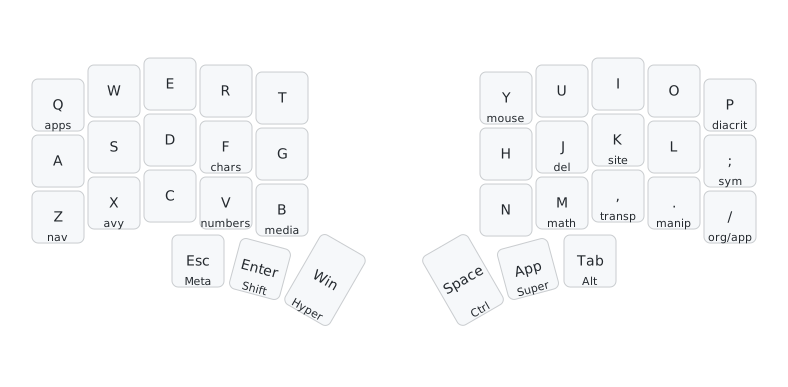
Simlayers are the most distinctive feature of this setup. A simlayer activates when you hold down a specific key and press another key simultaneously. Unlike traditional layers that require a dedicated layer-switch key, simlayers let any regular typing key double as a layer trigger—the key still types its letter on a normal tap, but holding it down and pressing a second key activates the layer.
I have 14 simlayers, each triggered by a different home-row or common key. The letter keys used as triggers are chosen from the least frequent letters in English, minimizing accidental activations during normal typing:
| Key | Frequency | Function |
|---|---|---|
z | 0.074% | Navigation |
q | 0.095% | App launcher |
x | 0.15% | Avy jump |
j | 0.15% | Deletion |
k | 0.77% | Special chars |
v | 0.98% | Numbers |
b | 1.5% | Media/windows |
p | 1.9% | Diacritics |
y | 2.0% | Mouse/screenshots |
m | 2.4% | Math symbols |
(Source: English letter frequency on Wikipedia.)
The remaining four simlayers use punctuation keys: , (transposition), . (text manipulation), ; (symbols), and / (Org-mode).
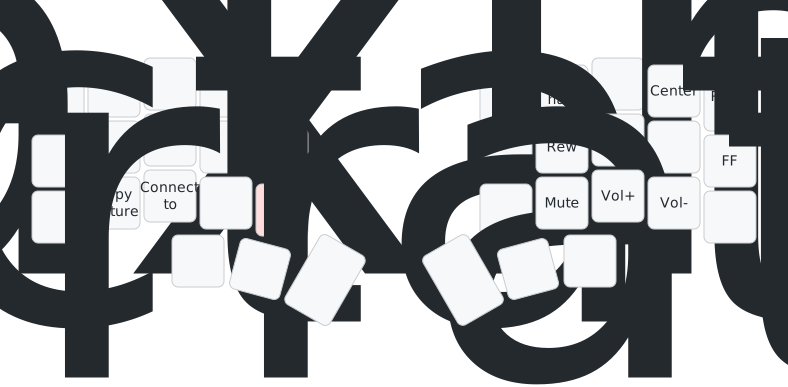
b-mode: media/windows
Hold b for media controls and window sizing. The right-hand top row keys control window placement (via Emacs Lisp commands in Emacs, or via Rectangle otherwise), the home row keys control playback, and the bottom row keys control volume. h and n control dictation and narration, respectively (the keyboard shortcuts need to be set under Settings > Keyboard > Dictation > Shortcut for dictation, and Settings > Accessibility > Spoken content > Speak selection for narration).
{:des "b-mode (media controls, window sizing)"
 :rules [:b-mode
         [:u {:modi :C-H- :key :u} :emacs]
         [:u {:modi :⇧⌘⌥⌃ :key :u}]
         [:p {:modi :C-H- :key :p} :emacs]
         [:p {:modi :⇧⌘⌥⌃ :key :p}]
         [:i {:modi :C-H- :key :i} :emacs]
         [:i {:modi :⇧⌘⌥⌃ :key :i}]
         [:o {:modi :⇧⌘⌥⌃ :key :o}]
         [:j :rewind]
         [:x {:modi :⇧⌘⌃ :key :3}]
         [:k :play_or_pause]
         [:semicolon :fast_forward]
         [:comma :volume_increment]
         [:period :volume_decrement]
         [:m :mute]
         [:c {:modi :C-M-s- :key :c} :emacs]
         [:g {:modi :C-M-s- :key :g} :emacs]
         [:h {:modi :⇧⌘⌥⌃ :key :0}]
         [:n {:modi :⇧⌘⌥⌃ :key :1}]
         ]}
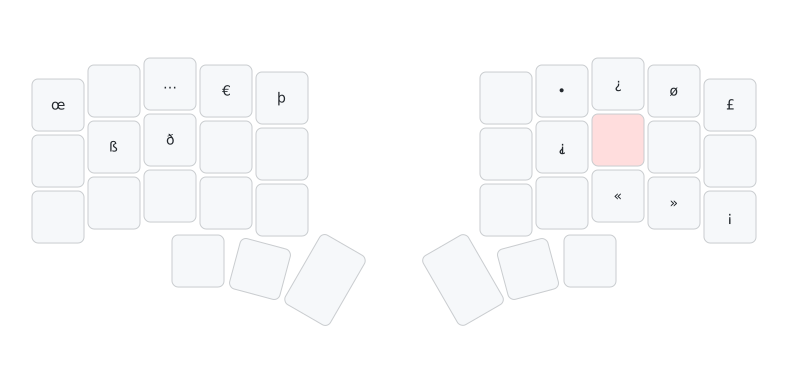
k-mode: special characters
Hold k to type characters from various European languages and typographic symbols (eth, thorn, sharp s, guillemets, interrobang, etc.).
{:des "k-mode (special chars)"
 :rules [:k-mode
         [:d :ð]
         [:e :…]
         [:i :¡]
         [:j [:insert "⸘"]]
         [:l [:insert "‽"]]
         [:o :ø]
         [:p :£]
         [:q :œ]
         [:r :€]
         [:s :ß]
         [:t :þ]
         [:u :•]
         [:slash :¿]
         [:comma :«]
         [:period :»]
         ]}
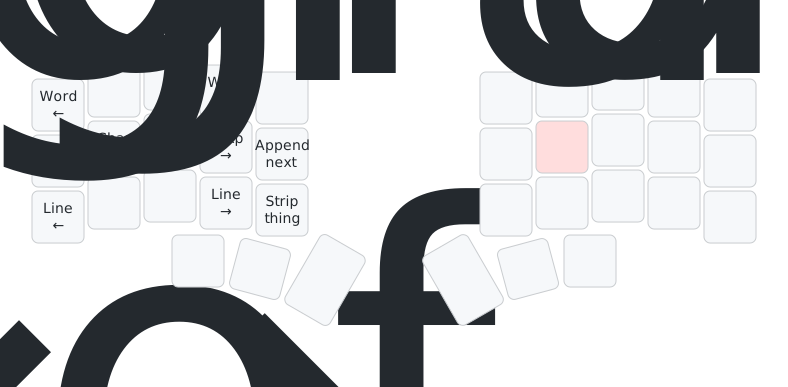
j-mode: deletion
Hold j for deletion commands. Outside Emacs, the keys map to standard macOS editing shortcuts (e.g. s for backspace, d for delete forward, q for delete word backward, w for delete to line start, e for delete to line end). In Emacs, each key triggers a dedicated deletion function via the C-H-M- modifier prefix, covering characters, words, sentences, sexps, and more.
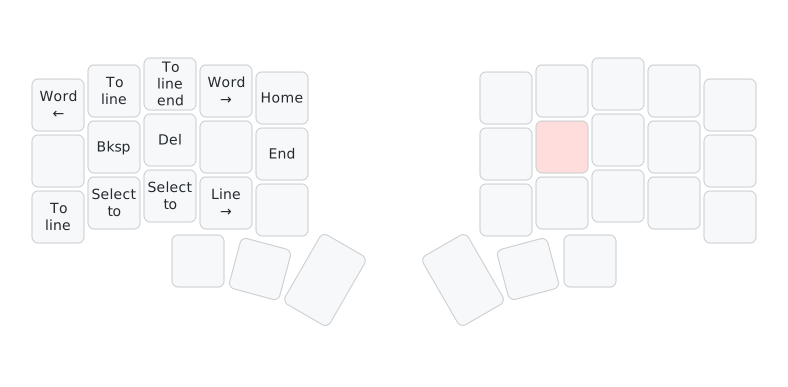
{:des "j-mode (deletion)"
 :rules [:j-mode
         [:a {:modi :C-H-M- :key :a} :emacs]
         [:s {:modi :C-H-M- :key :s} :emacs]
         [:s :delete_or_backspace :!emacs]
         [:d {:modi :C-H-M- :key :d} :emacs]
         [:d :delete_forward :!emacs]
         [:f {:modi :C-H-M- :key :f} :emacs]
         [:q {:modi :C-H-M- :key :q} :emacs]
         [:q {:modi :⌥ :key :delete_or_backspace} :!emacs]
         [:w {:modi :C-H-M- :key :w} :emacs]
         [:w {:modi :⌘ :key :delete_or_backspace} :!emacs]
         [:e {:modi :C-H-M- :key :e} :emacs]
         [:e {:modi :⌃ :key :k} :!emacs]
         [:r {:modi :C-H-M- :key :r} :emacs]
         [:r {:modi :⌥ :key :delete_forward} :!emacs]
         [:z {:modi :C-H-M- :key :z} :emacs]
         [:z {:modi :⌘ :key :delete_or_backspace} :!emacs]
         [:x {:modi :C-H-M- :key :x} :emacs]
         [:x {:modi :⌘⌥ :key :left_arrow} :!emacs]
         [:c {:modi :C-H-M- :key :c} :emacs]
         [:c {:modi :⌘⌥ :key :right_arrow} :!emacs]
         [:v {:modi :C-H-M- :key :v} :emacs]
         [:v {:modi :⌘ :key :delete_forward} :!emacs]
         [:b {:modi :C-H-M- :key :b} :emacs]
         [:t {:modi :C-H-M- :key :t} :emacs]
         [:t :home :!emacs]
         [:g {:modi :C-H-M- :key :g} :emacs]
         [:g :end :!emacs]
         ]}
m-mode: math symbols
Hold m for mathematical operators. Some of these characters have native Option+key shortcuts on the ABC Extended input source. The rest are inserted via a shell command that copies the character to the clipboard and pastes it with ⌘V. This means that using them will overwrite whatever is currently on the clipboard.
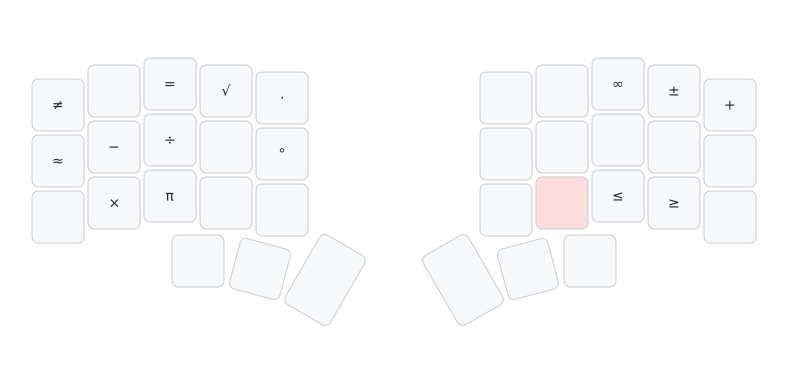
{:des "m-mode (math symbols)"
 :rules [:m-mode
         [:e :=]
         [:p :+]
         [:q :≠]
         [:d :÷]
         [:o :±]
         [:x [:insert "×"]]
         [:comma :≤]
         [:period :≥]
         [:a [:insert "≈"]]
         [:i [:insert "∞"]]
         [:s [:insert "−"]]
         [:t :·]
         [:g :°]
         [:r [:insert "√"]]
         [:c [:insert "π"]]
         ]}
p-mode: diacritics
Hold p to add a diacritical mark to the next character you type. This uses macOS’s “ABC - Extended” input source. For example, typing p + e then e produces é; typing p + u then o produces ö.
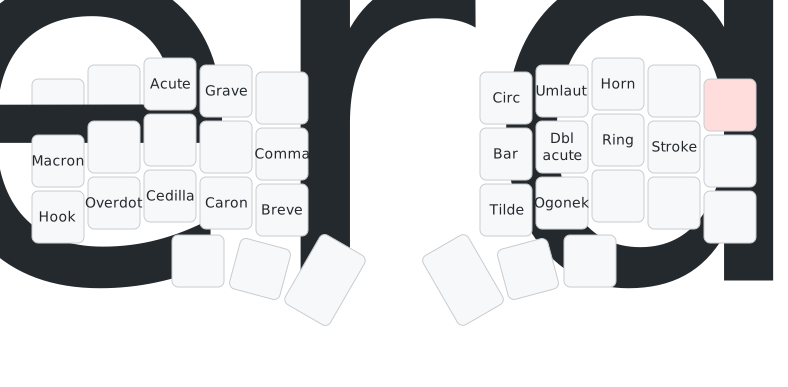
{:des "p-mode (diacritics)"
 :rules [:p-mode
         [:a :macron]
         [:b :breve]
         [:c :cedilla]
         [:e :accute_accent]
         [:g :undercomma]
         [:h :underbar]
         [:i :horn]
         [:j :double_acute_accent]
         [:k :overring]
         [:l :stroke]
         [:m :ogonek]
         [:n :tilde_accent]
         [:r :grave_accent]
         [:u :umlaut]
         [:v :caron]
         [:w :underdot]
         [:x :overdot]
         [:y :circumflex]
         [:z :hook]
         ]}
q-mode: apps
Hold q to open an application. 20+ applications are mapped. The letter choices are mnemonic where possible (e.g. e for Emacs, f for Firefox, t for Terminal).
Six keys switch to a Chrome profile instead of opening an app: h Personal, k pablo@stafforini.com, o Epoch, g Forethought, n Tlön and b baish.com.ar. chrome-profile-focus raises that profile’s existing window, or opens one if the profile has none. Chrome’s own --profile-directory flag opens a new window every time, which is why a plain open is not enough. The script only passes the request to an always-running server, because starting osascript on each key press sometimes took several seconds. Each rule gives the profile’s folder under ~/Library/Application Support/Google/Chrome and its name as shown in Chrome.
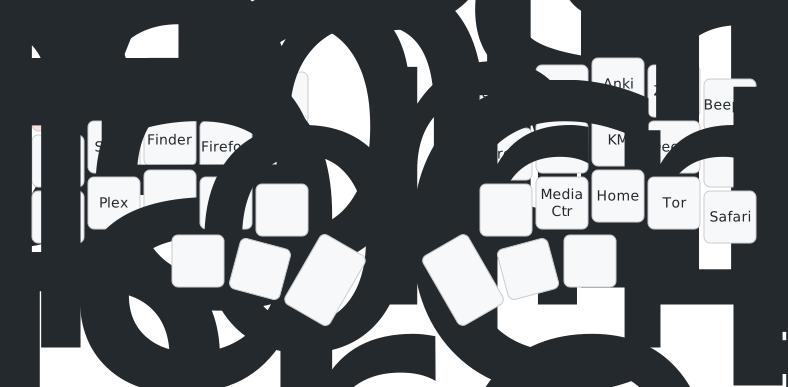
{:des "q-mode (apps)"
 :rules [:q-mode
         [:b [:chrome-profile "Profile 11" "baish.com.ar"]]
         [:c [:op "/Applications/Codex.app"]]
         [:d [:op "/System/Library/CoreServices/Finder.app"]]
         [:e [:op "/Applications/Emacs.app"]]
         [:f [:op "/Applications/Firefox.app"]]
         [:g [:chrome-profile "Profile 10" "forethought.org"]]
         [:h [:chrome-profile "Default" "Personal"]]
         [:i [:op "/Applications/Anki.app"]]
         [:j [:op "/System/Applications/System Settings.app"]]
         [:k [:chrome-profile "Profile 9" "pablo@stafforini.com"]]
         [:l [:op "/Applications/Signal.app"]]
         [:m [:op "/Applications/Media Center 29.app"]]
         [:n [:chrome-profile "Profile 3" "Tlön"]]
         [:o [:chrome-profile "Profile 2" "Epoch — Pablo"]]
         [:p [:op "/Applications/Plex Media Server.app"]]
         [:r [:op "/Applications/Karabiner-Elements.app"]]
         [:s [:op "/Applications/Slack.app"]]
         [:t [:op "/System/Applications/Utilities/Terminal.app"]]
         [:v [:op "/Applications/mpv.app"]]
         [:w [:op "/Applications/HoudahSpot.app"]]
         [:comma [:op "/Applications/Home Assistant.app"]]
         [:period [:op "/Applications/Tor Browser.app"]]
         [:slash [:op "/Applications/Safari.app"]]
         ]}
v-mode: numbers
Hold v to turn the right hand into a numpad. This is one of the most-used simlayers—on a 36-key keyboard with no number row, this is how I type numbers.
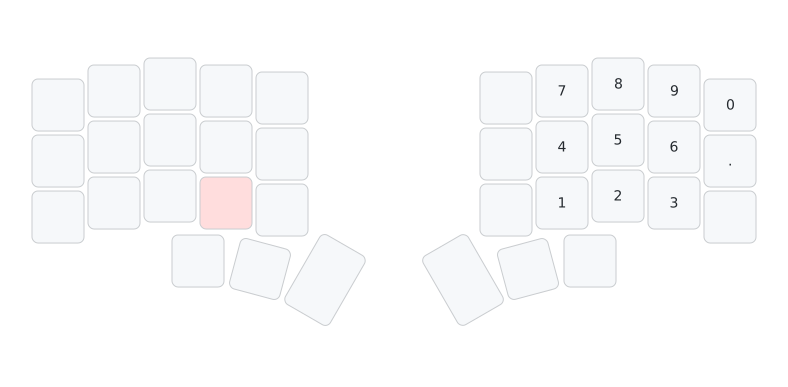
{:des "v-mode (numbers)"
 :rules [:v-mode
         [:i :8]
         [:##i :##8]
         [:j :4]
         [:##j :4]
         [:k :5]
         [:##k :5]
         [:l :6]
         [:##l :6]
         [:m :1]
         [:##m :1]
         [:o :9]
         [:##o :9]
         [:u :7]
         [:##u :7]
         [:comma :2]
         [:##comma :2]
         [:period :3]
         [:##period :3]
         [:p :0]
         [:##p :0]
         [:semicolon :period]
         [:##semicolon :period]
         ]}
x-mode: avy
Hold x to trigger Avy jump commands in Emacs (this simlayer is Emacs-only). Each key maps to a unique Avy command via the C-H-s- modifier prefix, providing instant, keyboard-driven navigation to any visible position in the buffer.
{:des "x-mode (avy)"
 :rules [:x-mode
         [:a [{:modi :C-H-s- :key :a}]]
         [:b [{:modi :C-H-s- :key :b}]]
         [:c [{:modi :C-H-s- :key :c}]]
         [:d [{:modi :C-H-s- :key :d}]]
         [:e [{:modi :C-H-s- :key :e}]]
         [:f [{:modi :C-H-s- :key :f}]]
         [:g [{:modi :C-H-s- :key :g}]]
         [:h [{:modi :C-H-s- :key :h}]]
         [:i [{:modi :C-H-s- :key :i}]]
         [:j [{:modi :C-H-s- :key :j}]]
         [:k [{:modi :C-H-s- :key :k}]]
         [:l [{:modi :C-H-s- :key :l}]]
         [:m [{:modi :C-H-s- :key :m}]]
         [:n [{:modi :C-H-s- :key :n}]]
         [:o [{:modi :C-H-s- :key :o}]]
         [:p [{:modi :C-H-s- :key :p}]]
         [:q [{:modi :C-H-s- :key :q}]]
         [:r [{:modi :C-H-s- :key :r}]]
         [:s [{:modi :C-H-s- :key :s}]]
         [:t [{:modi :C-H-s- :key :t}]]
         [:u [{:modi :C-H-s- :key :u}]]
         [:v [{:modi :C-H-s- :key :v}]]
         [:w [{:modi :C-H-s- :key :w}]]
         [:y [{:modi :C-H-s- :key :y}]]
         [:z [{:modi :C-H-s- :key :z}]]
         [:semicolon [{:modi :C-H-s- :key :semicolon}]]
         [:comma [{:modi :C-H-s- :key :comma}]]
         [:period [{:modi :C-H-s- :key :period}]]
         [:slash [{:modi :C-H-s- :key :slash}]]
         [:spacebar [{:modi :C-H-s- :key :spacebar}]]
         [:return_or_enter [{:modi :C-H-s- :key :return_or_enter}]]
         [:tab [{:modi :C-H-s- :key :tab}]]
         ]}
y-mode: mouse/screenshots
Hold y to move the mouse cursor with the keyboard (a and f for left/right, s and d for up/down, q and r and w and e for larger jumps) or take screenshots (z for full screen, c for selected area, v to copy selected area to clipboard). Enter and Space act as left and right click.
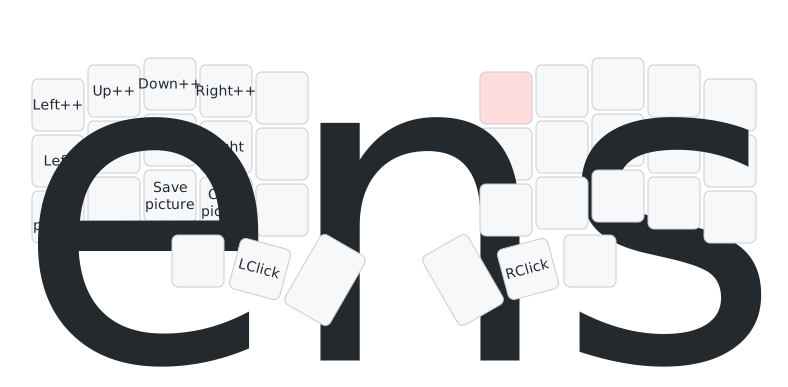
{:des "y-mode (mouse, screenshots)"
 :rules [:y-mode
         [:b {:modi :⇧⌘ :key :5}]
         [:c {:modi :⇧⌘ :key :4}]
         [:d {:mkey {:y 1500}}]
         [:e {:mkey {:y 4500}}]
         [:a {:mkey {:x -1500}}]
         [:f {:mkey {:x 1500}}]
         [:q {:mkey {:x -4500}}]
         [:r {:mkey {:x 4500}}]
         [:s {:mkey {:y -1500}}]
         [:v {:modi :⇧⌘⌃ :key :4}]
         [:w {:mkey {:y -4500}}]
         [:z {:modi :⇧⌘ :key :3}]
         [:right_command :button2]
         [:return_or_enter :button1]
         ]}
z-mode: navigation
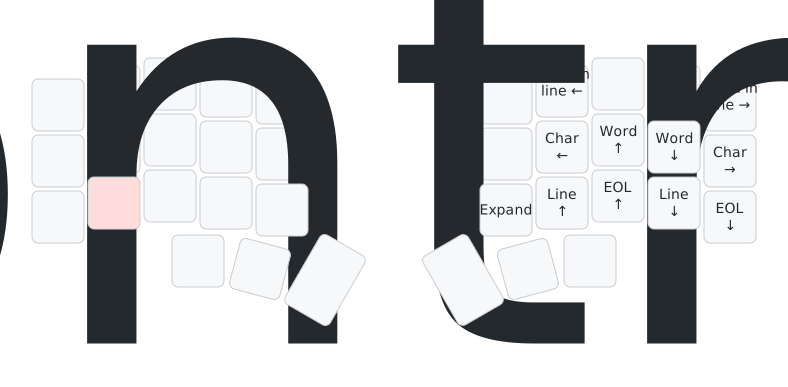
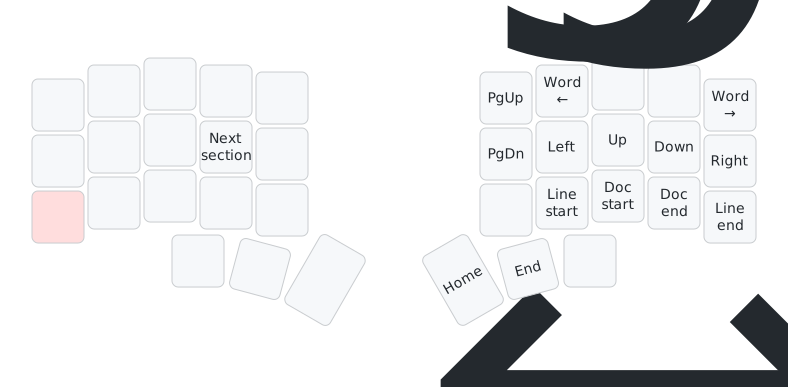
Hold z for cursor movement. The four arrow keys sit on the home row: j (left), k (up), l (down), ; (right). This is inspired by Vim’s h-j-k-l, with two modifications. First, the cluster is shifted one key to the right so that it aligns with the natural resting position of the four fingers. Second, up and down are swapped: k is up and l is down, placing up next to left and down next to right. This grouping works better for movement commands that can be conceptualized as either horizontal or vertical—for example, “sentence backward” is both “up” and “left,” while “sentence forward” is both “down” and “right.”
Beyond the arrow keys, y and h provide page up/down and m and / provide home/end. In Emacs, the keys trigger custom navigation commands via the A-C-s- modifier prefix, enabling more granular movement (by paragraph, sentence, defun, etc.). The ## prefix on some keys allows shift to be held for selection.
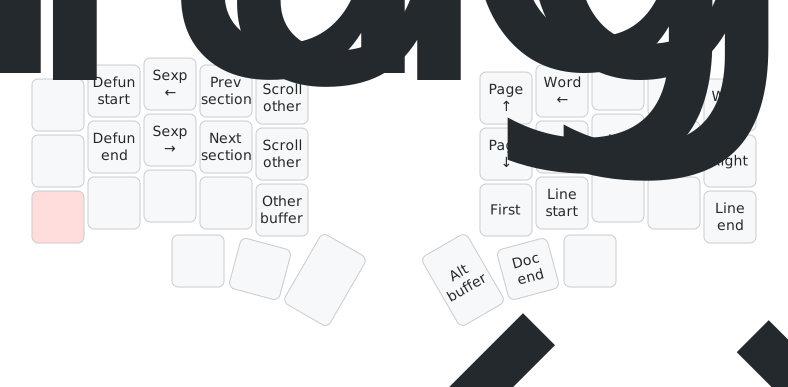
{:des "z-mode (navigation)"
 :rules [:z-mode
         [:b {:modi :A-C-s- :key :b} :emacs]
         [:c {:modi :A-C-s- :key :c}]
         [:d {:modi :A-H-M-s- :key :d} :emacs]
         [:e {:modi :A-C-s- :key :e} :emacs]
         [:f [{:modi :⌘⌃ :key :n} {:modi :⌘⌃ :key :h}] :chrome]
         [:f {:modi :A-C-s- :key :f}]
         [:g {:modi :A-C-s- :key :g} :emacs]
         [:h {:modi :A-C-s- :key :h} :emacs]
         [:##h :page_down]
         [:i {:modi :A-C-s- :key :i} :emacs]
         [:##i {:modi :⌥ :key :up_arrow}]
         [:j :left_arrow]
         [:##j :left_arrow]
         [:k :up_arrow]
         [:##k :up_arrow]
         [:l :down_arrow]
         [:##l :down_arrow]
         [:m {:modi :A-C-s- :key :m} :emacs]
         [:##m {:modi :⌘ :key :left_arrow}]
         [:n {:modi :A-C-s- :key :n} :emacs]
         [:o {:modi :A-C-s- :key :o} :emacs]
         [:##o {:modi :⌥ :key :down_arrow}]
         [:p {:modi :A-C-s- :key :p} :emacs]
         [:##p {:modi :⌥ :key :right_arrow}]
         [:r [{:modi :⌘⌃ :key :p} {:modi :⌘⌃ :key :h}] :chrome]
         [:r {:modi :A-C-s- :key :r} :emacs]
         [:s {:modi :A-C-s- :key :s} :emacs]
         [:t {:modi :A-C-s- :key :t} :emacs]
         [:u {:modi :A-C-s- :key :u} :emacs]
         [:##u {:modi :⌥ :key :left_arrow}]
         [:v {:modi :A-C-s- :key :v} :emacs]
         [:w {:modi :A-C-s- :key :w} :emacs]
         [:x {:modi :A-C-s- :key :x}]
         [:y {:modi :A-C-s- :key :y} :emacs]
         [:##y :page_up]
         [:spacebar {:modi :A-C-s- :key :spacebar} :emacs]
         [:spacebar {:modi :⌘ :key :up_arrow} :chrome]
         [:spacebar :home]
         [:comma {:modi :A-C-s- :key :comma} :emacs]
         [:##comma {:modi :⌘ :key :up_arrow}]
         [:period {:modi :A-C-s- :key :period} :emacs]
         [:##period {:modi :⌘ :key :down_arrow}]
         [:right_command {:modi :A-C-s- :key :tab} :emacs]
         [:right_command {:modi :⌘ :key :down_arrow} :chrome]
         [:right_command :end]
         [:semicolon :right_arrow]
         [:##semicolon :right_arrow]
         [:slash {:modi :A-C-s- :key :slash} :emacs]
         [:##slash {:modi :⌘ :key :right_arrow}]
         [:tab {:modi :A-C-s- :key :tab} :emacs]
         ;; [:##tab :home]
         ]}
,-mode: transposition
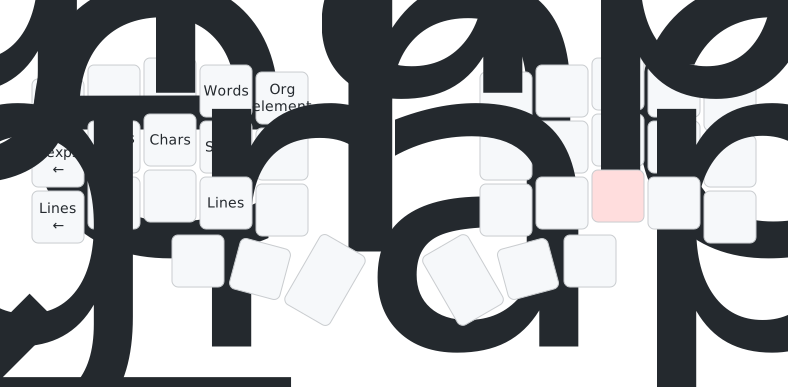
Hold , to trigger transposition commands in Emacs (transpose characters, words, lines, sentences, paragraphs, sexps, etc.) via the A-H-M- modifier prefix. This simlayer is Emacs-only.
{:des "comma-mode (transposition)"
 :rules [:comma-mode
         [:a {:modi :A-H-M- :key :a}]
         [:b {:modi :A-H-M- :key :b}]
         [:c {:modi :A-H-M- :key :c}]
         [:d {:modi :A-H-M- :key :d}]
         [:e {:modi :A-H-M- :key :e}]
         [:f {:modi :A-H-M- :key :f}]
         [:g {:modi :A-H-M- :key :g}]
         [:h {:modi :A-H-M- :key :h}]
         [:i {:modi :A-H-M- :key :i}]
         [:j {:modi :A-H-M- :key :j}]
         [:l {:modi :A-H-M- :key :l}]
         [:n {:modi :A-H-M- :key :n}]
         [:o {:modi :A-H-M- :key :o}]
         [:p {:modi :A-H-M- :key :p}]
         [:q {:modi :A-H-M- :key :q}]
         [:r {:modi :A-H-M- :key :r}]
         [:s {:modi :A-H-M- :key :s}]
         [:t {:modi :A-H-M- :key :t}]
         [:u {:modi :A-H-M- :key :u}]
         [:v {:modi :A-H-M- :key :v}]
         [:w {:modi :A-H-M- :key :w}]
         [:x {:modi :A-H-M- :key :x}]
         [:y {:modi :A-H-M- :key :y}]
         [:z {:modi :A-H-M- :key :z}]
         [:semicolon {:modi :A-H-M- :key :semicolon}]
         [:period {:modi :A-H-M- :key :period}]
         [:slash {:modi :A-H-M- :key :slash}]
         [:spacebar {:modi :A-H-M- :key :spacebar}]
         [:return_or_enter {:modi :A-H-M- :key :return_or_enter}]
         [:tab {:modi :A-H-M- :key :tab}]
         ]}
.-mode: text manipulation
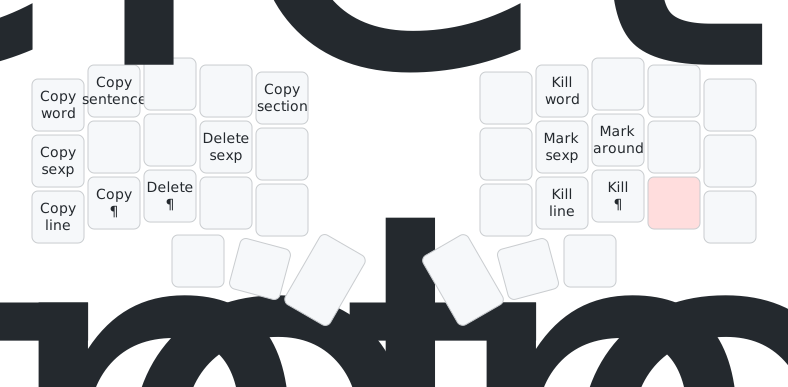
Hold . to trigger text manipulation commands (sorting, aligning, casing, commenting, etc.) via the A-C-H- modifier prefix.
{:des "period-mode (manipulation)"
 :rules [:period-mode
         [:a {:modi :A-C-H- :key :a}]
         [:b {:modi :A-C-H- :key :b}]
         [:c {:modi :A-C-H- :key :c}]
         [:d {:modi :A-C-H- :key :d}]
         [:e {:modi :A-C-H- :key :e}]
         [:f {:modi :A-C-H- :key :f}]
         [:g {:modi :A-C-H- :key :g}]
         [:h {:modi :A-C-H- :key :h}]
         [:i {:modi :A-C-H- :key :i}]
         [:j {:modi :A-C-H- :key :j}]
         [:k {:modi :A-C-H- :key :k}]
         [:l {:modi :A-C-H- :key :l}]
         [:m {:modi :A-C-H- :key :m}]
         [:n {:modi :A-C-H- :key :n}]
         [:o {:modi :A-C-H- :key :o}]
         [:p {:modi :A-C-H- :key :p}]
         [:q {:modi :A-H-M-s- :key :9}]
         [:r {:modi :A-C-H- :key :r}]
         [:s {:modi :A-C-H- :key :s}]
         [:t {:modi :A-C-H- :key :t}]
         [:u {:modi :A-C-H- :key :u}]
         [:v {:modi :A-C-H- :key :v}]
         [:w {:modi :A-C-H- :key :w}]
         [:x {:modi :A-C-H- :key :x}]
         [:y {:modi :A-C-H- :key :y}]
         [:z {:modi :A-C-H- :key :z}]
         [:semicolon {:modi :A-C-H- :key :semicolon}]
         [:comma {:modi :A-C-H- :key :comma}]
         [:slash {:modi :A-C-H- :key :slash}]
         [:spacebar {:modi :A-C-H- :key :spacebar}]
         [:return_or_enter {:modi :A-C-H- :key :return_or_enter}]
         ]}
;-mode: symbols
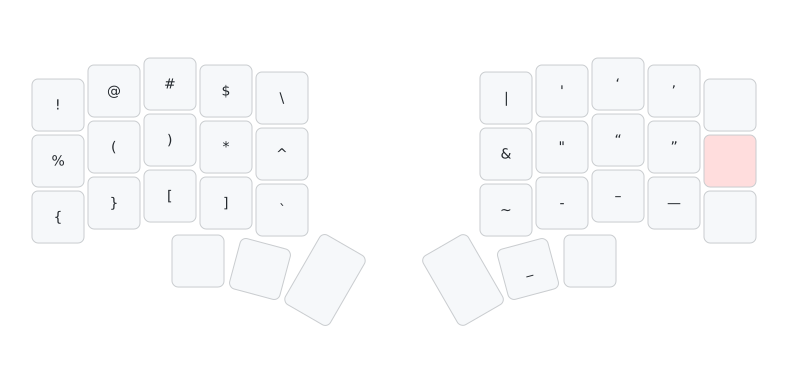
Hold ; for symbols that would normally require Shift + number row (e.g. !@#$%^&*), as well as brackets, braces, quotes, backtick, tilde, en-dash, and em-dash. This eliminates the need for a number row to access these characters.
{:des "semicolon (symbols)"
 :rules [:semicolon-mode
         [:##a :percent_sign]
         [:##b :grave_accent_and_tilde]
         [:##c :open_bracket]
         [:##d :close_parenthesis]
         [:##e :number_sign]
         [:##f :asterisk]
         [:##g :caret]
         [:##h :ampersand]
         [:##i :open_single_quote]
         [:##j :double_quote]
         [:##k :open_double_quote]
         [:##l :close_double_quote]
         [:##m :hyphen]
         [:##n :tilde]
         [:##o :close_single_quote]
         [:##q :exclamation_mark]
         [:##r :dollar_sign]
         [:##s :open_parenthesis]
         [:##t :backslash]
         [:##u :quote]
         [:##v :close_bracket]
         [:##w :at_sign]
         [:##x :close_brace]
         [:##y :vertical_bar]
         [:##z :open_brace]
         [:##comma :en_dash]
         [:##period :em_dash]
         [:##right_command :underscore]
         ]}
/-mode: org-mode
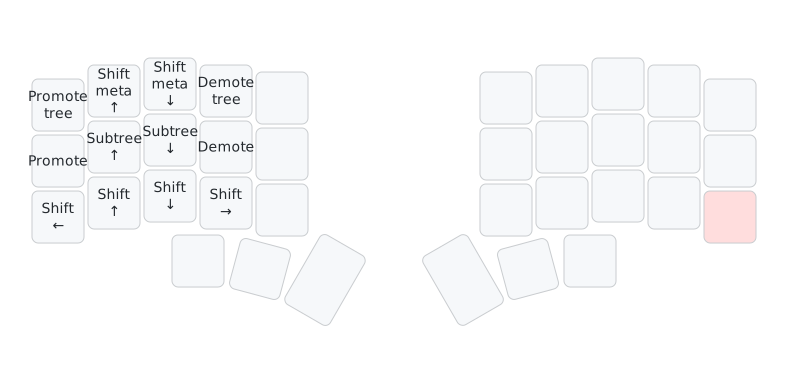
Hold / in Emacs to access org-mode commands via the C-H-M-s- modifier prefix.
{:des "slash simlayer → org-mode"
 :rules [:slash-mode
         [:a {:modi :C-H-M-s- :key :a} :emacs]
         [:b {:modi :C-H-M-s- :key :b} :emacs]
         [:c {:modi :C-H-M-s- :key :c} :emacs]
         [:d {:modi :C-H-M-s- :key :d} :emacs]
         [:e {:modi :C-H-M-s- :key :e} :emacs]
         [:f {:modi :C-H-M-s- :key :f} :emacs]
         [:g {:modi :C-H-M-s- :key :g} :emacs]
         [:h {:modi :C-H-M-s- :key :h} :emacs]
         [:i {:modi :C-H-M-s- :key :i} :emacs]
         [:j {:modi :C-H-M-s- :key :j} :emacs]
         [:m {:modi :C-H-M-s- :key :m} :emacs]
         [:n {:modi :C-H-M-s- :key :n} :emacs]
         [:o {:modi :C-H-M-s- :key :o} :emacs]
         [:p {:modi :C-H-M-s- :key :p} :emacs]
         [:q {:modi :C-H-M-s- :key :q} :emacs]
         [:r {:modi :C-H-M-s- :key :r} :emacs]
         [:s {:modi :C-H-M-s- :key :s} :emacs]
         [:t {:modi :C-H-M-s- :key :t} :emacs]
         [:u {:modi :C-H-M-s- :key :u} :emacs]
         [:v {:modi :C-H-M-s- :key :v} :emacs]
         [:w {:modi :C-H-M-s- :key :w} :emacs]
         [:z {:modi :C-H-M-s- :key :z} :emacs]
         [:x {:modi :C-H-M-s- :key :x} :emacs]
         [:y {:modi :C-H-M-s- :key :y} :emacs]
         [:period {:modi :C-H-M-s- :key :period} :emacs]
         ]}
Summary
This setup trades a steep learning curve for an extremely compact and efficient input system. The key design decisions are:
- Minimal firmware, maximal software. The keyboard firmware is nearly a no-op. All intelligence lives in Karabiner/Goku, which is easier to iterate on and works across keyboards.
- Simlayers over firmware layers. Instead of dedicated layer-switch keys, every letter can be a layer trigger. This is only possible because Karabiner’s simlayer mechanism is time-based, distinguishing a quick tap from a held key.
- Context-aware behavior. The same physical key does different things in Emacs vs. other apps. This lets me have Emacs-native deletion, navigation, and transposition commands alongside standard macOS shortcuts.
- Six Emacs modifiers from six thumb keys. By mapping all six Emacs modifier keys to physical keys, I have a keybinding space large enough to support thousands of unique commands.